| Environment | Version |
|---|---|
| Operating system | Windows 64-bit |
| Maya | 2025.3 or 2026.3 |
Use Python 3.11 and Qt 6 / PySide6 bundled with Maya.
Install, update and uninstall weSkel in Maya.
This procedure applies to the weSkel User package, supplied as a ZIP archive.
| Environment | Version |
|---|---|
| Operating system | Windows 64-bit |
| Maya | 2025.3 or 2026.3 |
Use Python 3.11 and Qt 6 / PySide6 bundled with Maya.
| Component | Installation |
|---|---|
| Framework + SDK | Required. The weSkel package and its Maya module are installed together. |
| weSkel menu | Selected by default. Adds weSkel to Maya’s main menu bar, with an Installation entry. |
| Shelves and icons | Selected by default. You can disable them all or individually select the shelves supplied in the package. |
Your choices are retained through updates and rollbacks. Your personal shelves and buttons are preserved.
You can change these choices through weSkel → Installation: click Appliquer les options, then restart Maya.
| Step | Action |
|---|---|
| 1 · Extract | Fully extract the User ZIP into a folder. |
| 2 · Open | In Maya, drag install_weSkel.py from that folder into the viewport. |
| 3 · Install | In weSkel — Installation, choose the menu and shelves to add, then click Installer. |
| 4 · Restart | Restart Maya. weSkel loads automatically with the selected components. |
Open the manager through weSkel → Installation. If you disabled this menu, drag install_weSkel.py from the extracted package into the viewport again. In this case, confirm your choices with Mettre à jour ce package, then restart Maya; you can reuse the package that is already installed.
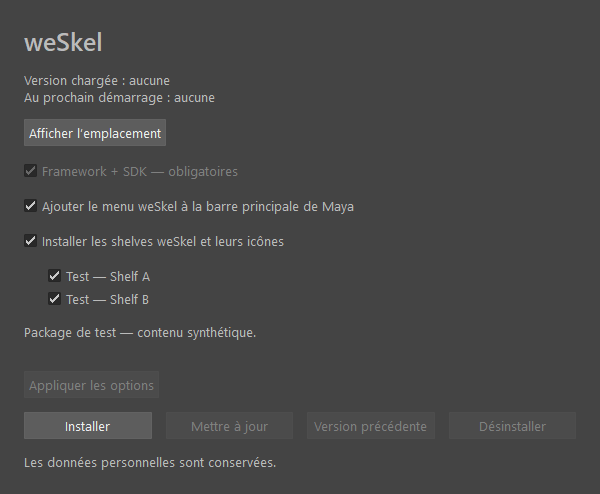
Alternatively, extract the new ZIP, drag its install_weSkel.py into the viewport and click Mettre à jour ce package.
The manager distinguishes Version chargée (the loaded version) from Au prochain démarrage (the version selected for the next startup). Your personal data is preserved.
In weSkel → Installation, click Version précédente, then restart Maya. The button is available when a previous version is retained.
Installed files are removed and their removal is verified after those sessions close. Your preferences and presets are preserved.
| Item | Default location |
|---|---|
| Versions | %LOCALAPPDATA%\weSkel\versions\<version> |
| Personal data | %LOCALAPPDATA%\weSkel\user_data |
| Maya module | modules\weSkel.mod, inside the user directory detected by Maya. |
A custom data root already configured through WESKEL_USER_DATA_ROOT takes precedence.
Automatic startup: Maya detects weSkel.mod, then the module’s own userSetup.py activates weSkel and the selected components. Your personal userSetup.py is not modified. No manual import is needed when starting Maya.