Skip to content
weSkelDOCUMENTATION
Documentation/Rigging/Module Graph

Procedural modules

Module Graph

Explore public interfaces, connect modules and reuse their wiring in Maya.

ModulesConnectionsPresets

Module Graph lets you explore and connect public ports of modules already built in Maya. Cables show the scene’s current connections.

Module Graph icon

In the weSkel shelf, click the Module Graph icon.
Its tooltip is Module Graph.

From Python
from weSkel.src.tools import module_graph
module_graph.show_dockable(floating=True)
# module_graph.show() # Alternative: standalone floating window.

The first opening is floating; Maya may later restore your saved docking layout.

Create instances with Module Manager before adding them to the graph.

1Scene 2Actions 3Graph 4Status
Module Graph · Spine, mirrored Clavicle and Arm, Poseidon theme.
Callout Function
1 · Scene Scene lists available instances; Presets provides access to saved connections.
2 · Actions Upstream/downstream exploration, adding or removing nodes, layout, display, pins, framing, Depth and Find port….
3 · Graph One node per instance, its public ports and their current connections. A mirrored module groups LEFT and RIGHT; CENTER identifies the center.
4 · Status Module and cable counts, connections outside the view, external inputs and the last operation’s result. Details provides diagnostics when available.
Action Effect
Drag from Scene Adds modules at the drop position. Double-clicking also adds them. An already displayed module is not duplicated.
Add Adds modules from the latest selection in the list, graph or Maya. Roots, controllers and owned nodes are recognized; persistent skin joints cannot be used to find their module.
Select a node or list item Also selects the module roots in Maya. Ctrl/click or Shift/click extends the graph selection. Selecting a cable preserves the Maya selection.
Inputs / Both / Outputs Rebuilds the view from selected modules, upstream, upstream and downstream, or downstream. Shift/click adds the network to the existing view.
Depth 0: starting modules only; 1: direct neighbors; 2 and above: that many levels; ∞ or -1: unlimited. Applies on the next click on Inputs, Both or Outputs.
Find port… / Ctrl+F Searches ports in displayed modules. Show port, Enter or double-click expands the port’s path and frames it at 100%.
Refresh Reads interfaces and connections again, particularly after renaming.

Both combines upstream and downstream paths from the selection; it does not add every side branch encountered. Without Shift, nodes outside the result leave the view, except pinned nodes.

Switch to 3 — Full to see available ports. Click a port row and then the opposite port, or drag between them. The gesture works in both directions: output to input or input to output. Escape cancels.

Selected row Connected channels
Port name All channels required by the input. Driver and Reference share a cable when they connect the same ports.
Driver Driver only.
Reference Inverse placement reference only; dotted cable.
The chevron expands channels; the row and socket are used for wiring. Connecting a port to a channel row selects that row’s channel. Driver to Reference is rejected, and missing channels are never created.

A Driver + Reference cable is orange and thicker. Different sources produce separate cables. Hover over a cable to read its endpoints; right-click offers Driver only, Reference only or Driver + Reference.

Replacing an occupied input requires confirmation. Animated inputs and cyclic connections are rejected. Each accepted gesture forms one Maya Undo command; locks, local values and other consumers are preserved.

Gesture Result
Right-click a cable → Disconnect Disconnects that cable’s channels. Multiple selected cables can be disconnected together.
Delete on cables Disconnects the selection in one Maya Undo.
Shift + Alt + left-button drag Draws a cutting line; releasing disconnects crossed cables. A combined cable cuts both channels. Escape cancels; one Undo restores the entire gesture.
Remove, Ctrl+L or Delete on nodes Removes their representations, including pinned nodes. Modules and connections remain in Maya. If nodes and cables are selected together, Delete only removes nodes from the view.
Clear Clears the view while retaining pinned nodes.
Cutting only affects visible cables. Moving or removing graph nodes is outside Maya Undo.
Control Effect
Wheel / middle button Zoom / pan. Drag on the background to select nodes with a rectangle.
Layout / L Arranges selected nodes, or all nodes with no selection. The button then frames the view; L keeps the framing. Pins retain their positions.
Frame / F, Frame all / A Frames the selection, or every displayed node.
1 — Simple Shows headers and general sockets; keeps cables visible.
2 — Connected Shows connected ports, including connections to modules outside the view or external sources.
3 — Full Shows every port, with expandable groups and channels.
Pin / P Pins the selection, or every node with no selection. If all are already pinned, unpins them. A pin protects against Clear, view replacement and layout; manual movement remains possible.
Modes 1/2/3 apply to selected nodes, or all nodes with no selection. Display shortcuts operate in the canvas. The toolbar overflow chevron provides access to actions hidden at narrow widths.
Port groups

Hand fingers and long port lists are grouped. Clicking a group expands it; it does not connect its contents as a batch. A cable whose port is collapsed stays attached to the group and keeps its exact endpoints in its tooltip.

A preset describes public connections between displayed modules, with an optional layout. It reuses existing scene instances.

In Presets Action
Save… Names the preset, chooses whether to include positions/folds, then Save to library or Export JSON…. Connections excluded from the scope are counted in the form.
Apply Applies the selected preset and its layout. A preview opens when mapping or replacement needs your choice.
Double-click / Import… Opens a preview of a library preset, or an external JSON file.
Update… / Rename… Replaces the preset’s contents after confirmation, or changes its name and file.
Folder / Delete… Opens the library folder, or deletes the selected file after confirmation. Deleting the file does not change the rig.
Review the preview before applying
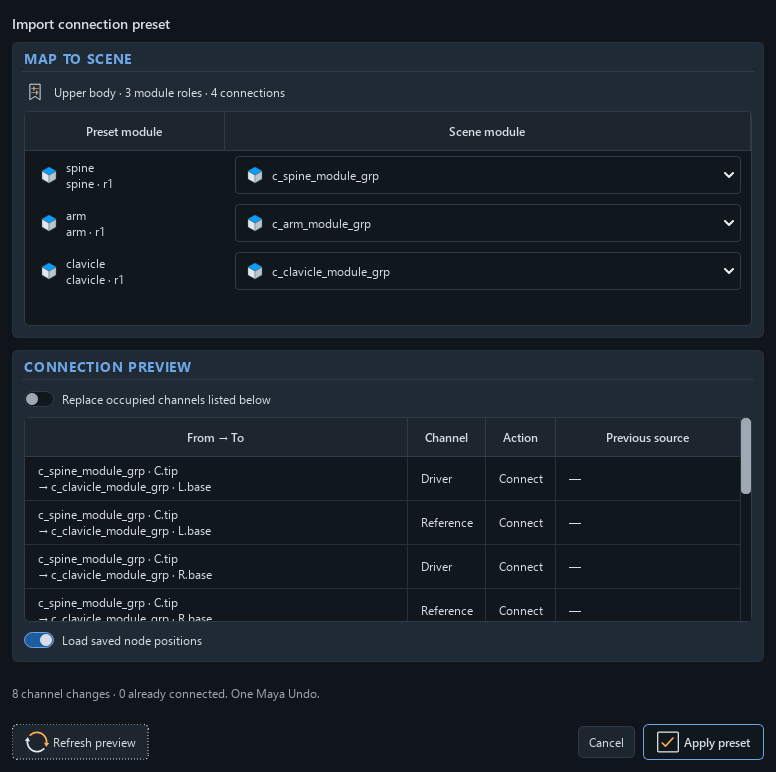
Preset preview: module mapping and channel changes before applying.
Step Check
Map to scene Assign each role to a compatible Scene module. Two roles require distinct instances; importing creates no instances.
Connection preview Read channels to connect, already connected channels, occupied inputs and animation blocks.
Replace occupied channels listed below Allows only the displayed replacements. Other connections are preserved.
Refresh preview Reads a changed scene again and retains mappings that remain valid.
Load saved node positions Restores the saved layout, when the preset includes one.
Apply preset Applies the wiring in one Maya Undo. A failure restores the batch; an identical import adds no extra Undo. Cancel changes nothing.

The library is stored in module_graph/presets under your weSkel user data. Saving, renaming or deleting a file is outside Maya Undo.

On closing, the last twenty scenes retain their displayed modules, positions, folds, pins, modes and framing in user preferences. Depth resets to 1. Missing modules are ignored.

Restoring this view does not reconnect anything or apply a preset. Scene events and Undo/Redo refresh the displayed connections.